How to Change My Location on My iPhone - Practical Methods That Actually Work
Location services play a much bigger role on the iPhone than many users realize. From navigation and weather apps to social platforms and Apple’s own Find My feature, your location quietly influences how apps behave, what content you see, and sometimes even who can see you.
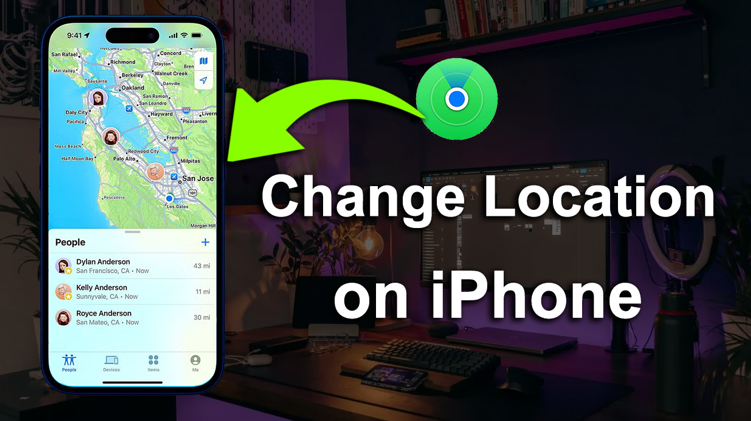
That’s why so many people eventually find themselves asking the same question: how to change my location on my iPhone. And usually, it’s not out of curiosity, it’s because something isn’t working the way they want.
Maybe an app keeps showing content from the wrong city. Maybe you want to protect your privacy without turning location services off completely. Maybe you’re using a location-based app that works better when your position is set somewhere else. Or maybe you are looking for Pokemon GO spoofer on iPhone to enjoy better gameplay. Whatever the reason, changing your iPhone’s location isn’t as simple as flipping a switch.
Why Changing Location on iPhone Is Not Straightforward
Apple designs iOS with privacy and security in mind, which is generally a good thing. However, that same design also means Apple doesn’t allow users to manually edit their GPS location. There is no built-in option to type in a new city or “fake” your position.
Instead, iOS only gives you control over whether apps can access your location, not what location they receive. This distinction is important. Turning location services off or limiting access doesn’t help if your goal is to appear somewhere else.
So when users search for phrases like how to change location on iPhone or how to change my location on my iPhone, what they’re really looking for is a workaround that still feels safe and reliable.
What You Can (and Can’t) Do with iOS Settings
Before looking at third-party options, it’s worth understanding what Apple’s official tools can do.
In Settings > Privacy & Security > Location Services, you can allow or deny location access for individual apps, choose “While Using the App” instead of “Always”, share approximate location instead of precise location. These controls are useful, especially for privacy. But they don’t actually change your location. Apps either see your real position or nothing at all. If you want your iPhone to report a different city or country, these settings won’t get you there.
This is also why options like changing Apple ID region or disabling location services often fail to solve the problem users actually have.
Can You Change Location on Find My iPhone?
Another common question is how to change Find My iPhone location or how to change location on Find My. The short answer is that Apple doesn’t allow direct location editing here either.
Find My uses the device’s real GPS data, and while you can stop sharing your location or switch to another Apple device as your location source, you can’t manually set a fake position within the app itself. For users who want more control, without disabling important features entirely, this limitation can be frustrating.
A More Flexible Approach: Changing GPS Location at the System Level
Because iOS doesn’t support manual GPS changes, the only practical way to do this is by adjusting location data externally, before it reaches your apps.
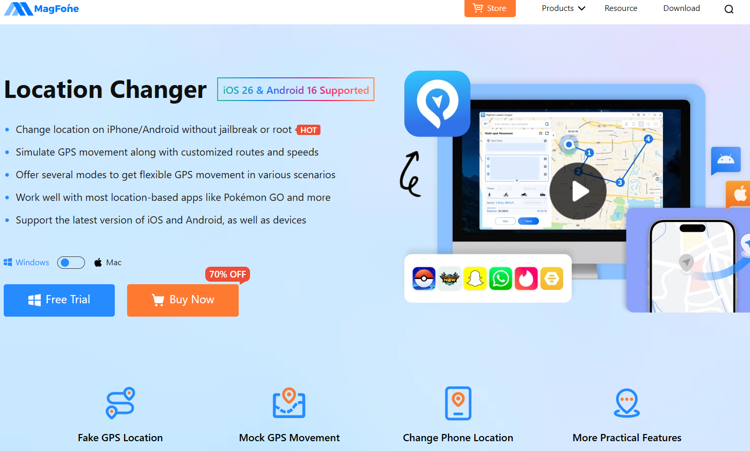
This is where MagFone Location Changer come in. Instead of blocking location access, this tool allow you to set a virtual location that your iPhone recognizes as real. As a result, apps behave naturally, just as if you were physically there. The key is choosing a solution that doesn’t require jailbreaking or risky system modifications.
How to Change My Location on My iPhone Using MagFone Location Changer
MagFone Location Changer is designed for users who want more control over their iPhone’s GPS location without touching the system itself. The idea is simple, you connect your device, choose a location, and let the software handle the rest.
What makes this approach appealing is how little technical knowledge it requires. You don’t need to tweak iOS settings or worry about long-term changes to your device.
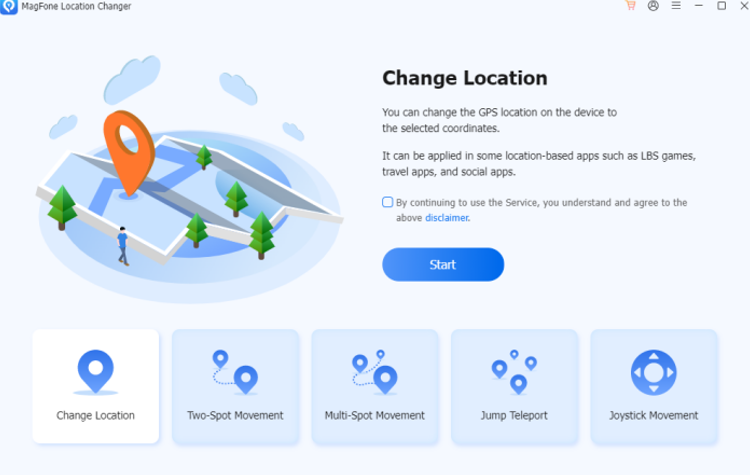
Step 1: Install and launch MagFone Location Changer on your computer, the software runs on both Windows and macOS. Once opened, connect your iPhone using a USB cable.
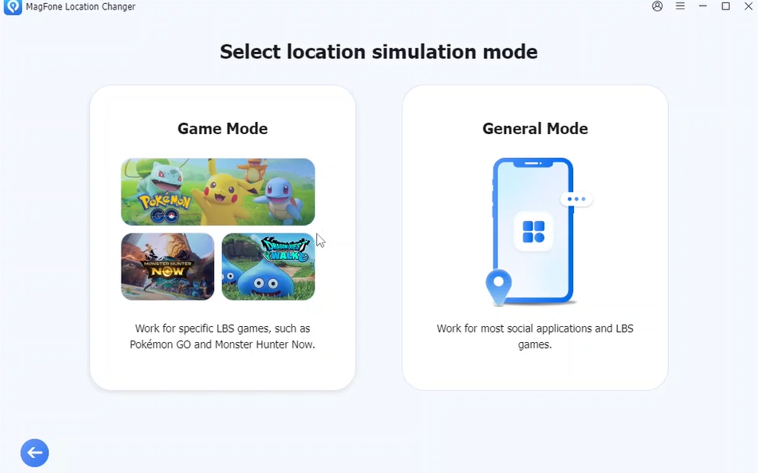
Step 2: Select General mode, a map interface will appear, allowing you to search for any city, address, or GPS coordinate.
Step 3: You can type in a specific place or click directly on the map. The selected spot becomes your new virtual location. With one click, your iPhone’s GPS updates instantly. Apps that rely on location will reflect the new position right away.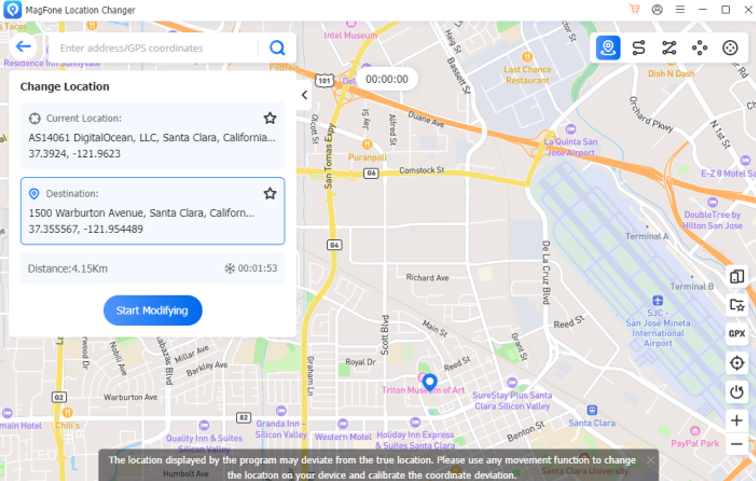
For users who need movement rather than a fixed point, MagFone also offers joystick and route simulation options, which can make location changes feel more natural over time.
Why MagFone Feels More Natural Than Other Options
Unlike basic location toggles or app-level tricks, changing your GPS location at the system level ensures consistency. All apps receive the same location data, which reduces conflicts and unexpected behavior.
Another advantage is reversibility. When you restart your iPhone or disconnect the tool, your real location is restored. This makes the process feel less risky and more controlled. It’s also worth noting that MagFone Location Changer works on both iPhone and Android. If you are looking for a solution of how to change location on Android, MagFone is also a good choice, which can be useful for users who switch devices or manage multiple phones.
Common Situations Where Changing iPhone Location Helps
Users typically look for location-changing solutions in scenarios like:
- Accessing region-based content or app features
- Protecting personal privacy without disabling GPS entirely
- Testing apps that behave differently by region
- Using location-based services more flexibly
Things to Keep in Mind Before Changing Your Location
While changing your location can be helpful, it’s still important to use such tools responsibly. Some apps have strict location policies, and misuse may violate their terms of service.
The goal should always be control and flexibility, not deception or abuse. When used properly, location-changing tools can enhance how you use your device rather than limit it.
Final Thoughts
If you’ve been wondering how to change my location on my iPhone, the reality is that Apple doesn’t offer a direct solution. iOS settings can limit access, but they can’t alter your actual GPS position. For users who need more flexibility, a dedicated tool like MagFone Location Changer offers a practical alternative. It provides system-level location changes without jailbreaking, keeps the process simple, and allows you to return to your real location whenever you want.
Ultimately, the best solution is one that fits naturally into how you already use your iPhone, without adding unnecessary complexity. And for many users, that balance is exactly what makes location-changing tools worth considering.